
Motherboard USB 2.0 to Type C Front Panel Cable
4.8Editor score
480Mbps USB 2.0 speed
Nine-pin motherboard connector
Compact 17cm cable length
Front panel USB C headers add a convenient external USB-C connection to a desktop PC, but choosing the right adapter requires matching the motherboard header, cable design, case layout, and intended data speed. A useful header should provide reliable connections, fit neatly inside the chassis, and support the USB-C devices used in the build without unnecessary adapters.
This guide compares ten front panel USB C header options by examining connector standards, transfer capabilities, cable length, mounting hardware, power delivery claims, operating-system support, and installation requirements. The list includes 20-pin Type-E extensions, 3.5-inch internal hubs, PCIe expansion cards, and a USB 2.0 adapter for older motherboards.
Each review identifies the product most suited to a particular build rather than treating every header as interchangeable. The top picks represent a well-rounded choice, a budget-friendly solution, and a feature-focused premium option. Product details and availability can change, so readers should verify current motherboard specifications and listings before purchasing.
4.8Editor score

4.6Editor score

5.0Editor score
As an Amazon Associate we earn from qualifying purchases.
The table below compares all ten options by data standard, motherboard connection, physical format, and the main use case each one serves. The ratings reflect the supplied product information and should be considered alongside header compatibility and installation requirements.



The GRAUGEAR 20Gbps Type E Key A Front Panel USB C Header Extension Cable combines a straightforward panel-mounted connection with support for the fastest USB standard represented in this guide. Its supplied rating is 4.6, reflecting broadly favorable customer feedback. The product is especially relevant for builders who want a front-accessible USB-C port without replacing the entire case or motherboard.
We may earn a commission when you buy through this link, at no additional cost to you.
Its main attraction is claimed support for USB 3.2 Gen 2×2 at 20Gbps, while remaining compatible with 10Gbps and 5Gbps USB generations. The 20-pin Type-E Key-A connector plugs directly into a compatible motherboard header, while the female USB-C end mounts at the front of the chassis. A PCIe bracket provides an alternative way to secure the connector, and the 23.6-inch cable offers ample room for routing around internal components.
The construction details support longevity and signal quality. GRAUGEAR describes the connector as metal, while the internal cable uses double-shielded wiring intended to reduce electromagnetic interference. Plug-and-play operation means no software installation is necessary. The important limitation is hardware-dependent: reaching the full 20Gbps rate requires a device and motherboard path that specifically support USB 3.2 Gen 2×2 rather than merely offering a standard USB-C port.
This is the most balanced recommendation for a modern desktop because it combines high potential bandwidth, a long internal cable, broad peripheral support, and a useful mounting bracket. It is best for owners of a relatively recent motherboard with a 20-pin USB 3.2 Type-E Key-A header. Builders with only an older 19-pin USB 3.0 header should investigate a compatible conversion card or choose a product designed for that connector instead.
Before buying, inspect the motherboard manual and identify the exact internal USB header. A Type-C front port is not interchangeable with every USB header, and connector shape alone does not guarantee 20Gbps performance. Once compatibility is confirmed, this model offers an attractive way to add front USB-C access with fewer visible cables and a professional mounting option.
The adapter can negotiate USB 3.2 Gen 2×2 performance when the motherboard controller, connected equipment, and cable path all support it. Older USB-C devices will remain usable at their own lower limits, so the connector provides a flexible upgrade rather than an all-or-nothing proposition.
The female panel connector and included PCIe bracket help create a stable front connection while keeping the extension routed inside the chassis. The generous cable length is useful when the drive cage, power supply, or radiator leaves little open space behind the case fascia.
We may earn a commission when you buy through this link, at no additional cost to you.
The GRAUGEAR PC Motherboard USB-C Front Panel Adapter Cable is a 20Gbps Type-E solution with a supplied rating of 4.6. It closely resembles the first product in function, but deserves separate consideration because it is a distinct listing with its own warranty, construction details, and customer feedback. It is well suited to builds needing a long route from the motherboard header to the case fascia.
We may earn a commission when you buy through this link, at no additional cost to you.
The cable connects a 20-pin USB 3.2 Type-E Key-A header to a panel-mounted female USB-C port. Claimed bandwidth reaches 20Gbps under USB 3.2 Gen 2×2, with backward compatibility for 10Gbps and 5Gbps operation. Its 23.6-inch, or 60-centimeter, length provides enough slack for larger cases or unconventional layouts where the motherboard header sits far from the front panel.
GRAUGEAR emphasizes a metal connector and double-shielded wires intended to support durability and stable signal transmission. The included PCIe bracket provides a straightforward mounting point when the case's original USB-C opening cannot retain the adapter by itself. Installation is otherwise simple: identify the motherboard header, connect the internal plug with the correct orientation, and route the cable without sharply bending it around moving parts.
The trade-off is that this is not a universal USB-C solution. It cannot attach to a nine-pin USB 2.0 header or a 19-pin USB 3.0 header, and 20Gbps operation depends on compatible host and peripheral hardware. Those constraints are acceptable for a user who has deliberately selected a modern Type-E-equipped motherboard and wants a flexible high-speed front connection.
Overall, this adapter is particularly attractive for compact or densely routed cases where a short internal lead would be inconvenient. It also suits builders who want the 23.6-inch routing freedom of a conventional front-panel extension while retaining USB 3.2 Gen 2×2 support. Confirm the motherboard's 20-pin Type-E header before ordering and use the included bracket for a finished appearance.
A 23.6-inch lead can reach the front panel from headers positioned near the rear, lower edge, or center of a motherboard. It also leaves room to make a gentle service loop, which is preferable to sharply compressing the cable behind the drive cage.
The adapter supports several USB data generations, but actual throughput depends on the motherboard controller and attached device. The plug-and-play design simplifies use with phones, tablets, storage, mice, hubs, and other USB-C accessories.
We may earn a commission when you buy through this link, at no additional cost to you.
The GRAUGEAR 20Gbps USB3.2 Gen2x2 USB-C Front Panel Adapter is a mixed-port solution with a supplied rating of 4.6. Instead of adding only USB-C, it provides a panel-mounted USB-C female port and a USB-A female port. That makes it a useful option for builds that want a modern reversible connector without giving up compatibility with legacy peripherals.
We may earn a commission when you buy through this link, at no additional cost to you.
The internal side uses a 20-pin USB 3.2 Type-E Key-A connector for USB-C and a 19-pin USB 3.0 header for USB-A. Claimed USB-C performance reaches 20Gbps with USB 3.2 Gen 2×2, while the Type-A connection supports USB 3.0 at 5Gbps. The product also advertises backward compatibility with USB 2.0 devices, allowing common accessories to function at their respective speed limits.
A PCIe bracket provides an alternative mounting arrangement, and the adapter uses shielded wiring intended to limit signal interference. Installation requires access to both internal headers, so the motherboard must provide one 20-pin Type-E and one 19-pin USB 3.0 connection. This dual-header requirement is the central practical consideration and should be checked before the case is opened.
The product is less convenient for minimalist upgrades than a single-cable adapter, but it offers more front-panel functionality in return. A phone can use USB-C, while a controller, keyboard, legacy drive, or other USB-A peripheral can remain connected without occupying a rear port. Full 20Gbps USB-C throughput still requires compatible hardware and cannot be produced by the connector alone.
For a builder who regularly uses both USB-C and USB-A accessories, this is one of the most functional entries in the guide. It suits motherboards with the required headers and cases able to accept an externally mounted connector. Buyers should compare the panel footprint with the available opening and verify that the internal leads can reach both motherboard headers without tension.
Having USB-C and USB-A on the same panel assembly reduces the need for separate front adapters. It is especially convenient when a case lacks a native front USB-A opening or when the builder wants both standards grouped in one accessible location.
Because this option depends on two motherboard connectors, compare the manual with the planned layout before buying. It is best suited to newer boards that already expose the required Type-E and Type-A header positions.
We may earn a commission when you buy through this link, at no additional cost to you.
The GRAUGEAR 3.5 Inch Front Panel Hub is a four-port expansion unit with a supplied rating of 4.2. It converts an unused 3.5-inch drive-bay position into a concentrated panel containing two USB-C ports and two USB-A ports. This makes it the most port-dense front USB C header in the group and a practical choice for compact cases with limited front-panel space.
We may earn a commission when you buy through this link, at no additional cost to you.
All four external connections are described as supporting up to 10Gbps under USB 3.2 Gen2, with backward compatibility for USB 3.0 and USB 2.0. Internally, the hub connects through a 20-pin USB 3.2 Type-E Key-A header and draws power from a 15-pin SATA connector. The metal housing is designed for durability, and six screws are included to stabilize the unit in the drive cage.
The product includes stated protection against overcurrent, overvoltage, and short circuits. These safeguards make the hub more appropriate for a permanently installed desktop than a loose cable accessory, while the SATA power connection provides a stable source for several attached devices. Plug-and-play operation means no driver installation is needed after the internal connections are secure.
Its limitations are equally important. Unlike the newest Gen 2×2 options, the USB-C ports top out at 10Gbps, so this hub is better suited to everyday accessories, storage, and general productivity than to workflows requiring the full 20Gbps standard. It also requires both a Type-E motherboard header and SATA power, reducing compatibility with older or unusually restricted boards.
Choose this hub when one accessible panel must serve many peripherals and the case has an open 3.5-inch bay. It offers the broadest external port selection here while avoiding the need to connect four separate front cables. Builders should confirm the bay's physical clearance, ensure the SATA power lead can reach, and verify that the motherboard supports the specified Type-E header before installation.
Two USB-C and two USB-A sockets in one 3.5-inch unit keep frequently used peripherals within easy reach. The format is particularly useful in compact cases where each individual front opening requires substantial space.
SATA power and stated overcurrent, overvoltage, and short-circuit protection make this a more permanent hub solution. Screw mounting further reduces movement that could loosen an internal connection.
We may earn a commission when you buy through this link, at no additional cost to you.
The Sinefine PCIe x1 USB-C expansion card offers a different route to a front-panel USB-C header. It has a supplied rating of 4.5 and derives its USB connectivity through an available PCI Express slot rather than requiring a dedicated 20-pin Type-E motherboard header. The card adds a front USB-A port and a front USB-C port, making it a practical choice for systems with limited native front-panel options.
We may earn a commission when you buy through this link, at no additional cost to you.
Its stated transfer rate is 5Gbps under USB 3.2 Gen1. The product description notes that actual speed can be limited by the connected device, which is normal for shared USB links. The card includes a 19-pin front-panel header arrangement and a 20-pin USB 3.0 socket expansion, giving the builder more ways to connect the internal wiring while still presenting external Type-C and Type-A connectors.
Compatibility is listed for Windows 7, 8, 10, and 11 in both 32-bit and 64-bit forms, along with Linux Mint and Ubuntu 20.04. The description gives mixed guidance for older Windows releases, server systems, macOS, Linux, and certain Dell motherboard configurations, so checking the system before installation is important. Windows 10 and later are identified as not requiring drivers.
The product uses polymer-dielectric, explosion-proof capacitors and voltage-regulating capacitors at each interface for temperature control and stable power. It draws power from the system without a separate external power adapter. Installation is mechanical: shut down the computer, remove the side panel, insert the card into an empty PCIe slot, and secure it with the bracket screw.
The principal trade-off is that 5Gbps is well below the 20Gbps available from the leading Type-E products. Even so, this card is attractive for a builder whose motherboard lacks Type-E, whose case needs a rear or internal expansion option, or whose devices do not require high-bandwidth USB. It also uses a PCIe slot that might otherwise remain available for a graphics card or storage controller.
The PCIe approach can provide front USB-C access on a motherboard that does not expose the required 20-pin Type-E header. It shifts the compatibility question from an internal header check to the availability of a free PCIe slot.
Per-interface voltage regulation and system-provided power simplify installation. The card avoids a separate cable from the power supply, although the PCIe slot must still be physically available and correctly installed.
We may earn a commission when you buy through this link, at no additional cost to you.
The GRAUGEAR 3.5 Inch Front Panel USB Hub combines a 20Gbps USB-C port with two 5Gbps USB-A ports in a single drive-bay unit. Its supplied rating is 4.6, placing it among the stronger-rated options in the guide. The format is designed for a desktop with an unused 3.5-inch bay, offering more front access than a single extension cable without reaching four external sockets.
We may earn a commission when you buy through this link, at no additional cost to you.
Its USB-C connection supports USB 3.2 Gen 2×2 at up to 20Gbps when the motherboard and attached device support that standard. The two USB-A connectors support USB 3.0 at 5Gbps. Internally, the hub uses a 20-pin USB 3.2 Type-E Key-A header for high-speed USB-C and a 19-pin USB 3.0 header for the Type-A connections. Both header positions must exist on the motherboard.
The hub fits into a standard 3.5-inch case opening and includes six screws for stability. GRAUGEAR describes overcurrent, overvoltage, and short-circuit protection, making the unit better suited to a fixed internal role than a loose adapter. It uses the motherboard for data and does not list a separate SATA power requirement in the supplied information, reducing cable clutter compared with the four-port hub.
Its trade-offs are clear. It consumes two valuable motherboard header locations, and the full 20Gbps capability still depends on compatible host hardware. The USB-A ports are limited to 5Gbps rather than 10Gbps. In addition, the physical bay must be available and must not conflict with another drive cage component, storage drive, or cable-management arrangement.
This model is ideal for a builder who wants one fast USB-C connection plus conventional USB-A ports in a compact panel. It is particularly compelling for systems that already have the necessary Type-E and 19-pin headers but lack a case with a native front USB-C opening. Verify the bay dimensions, header availability, and motherboard controller generation before ordering.
The port mix supports fast external storage or other high-bandwidth accessories while preserving convenient access for legacy peripherals. It avoids forcing every device through a reversible Type-C connection.
Stated overcurrent, overvoltage, and short-circuit protection add confidence for a permanently mounted unit. Six included screws help keep the metal housing firmly seated in the drive bay.
We may earn a commission when you buy through this link, at no additional cost to you.
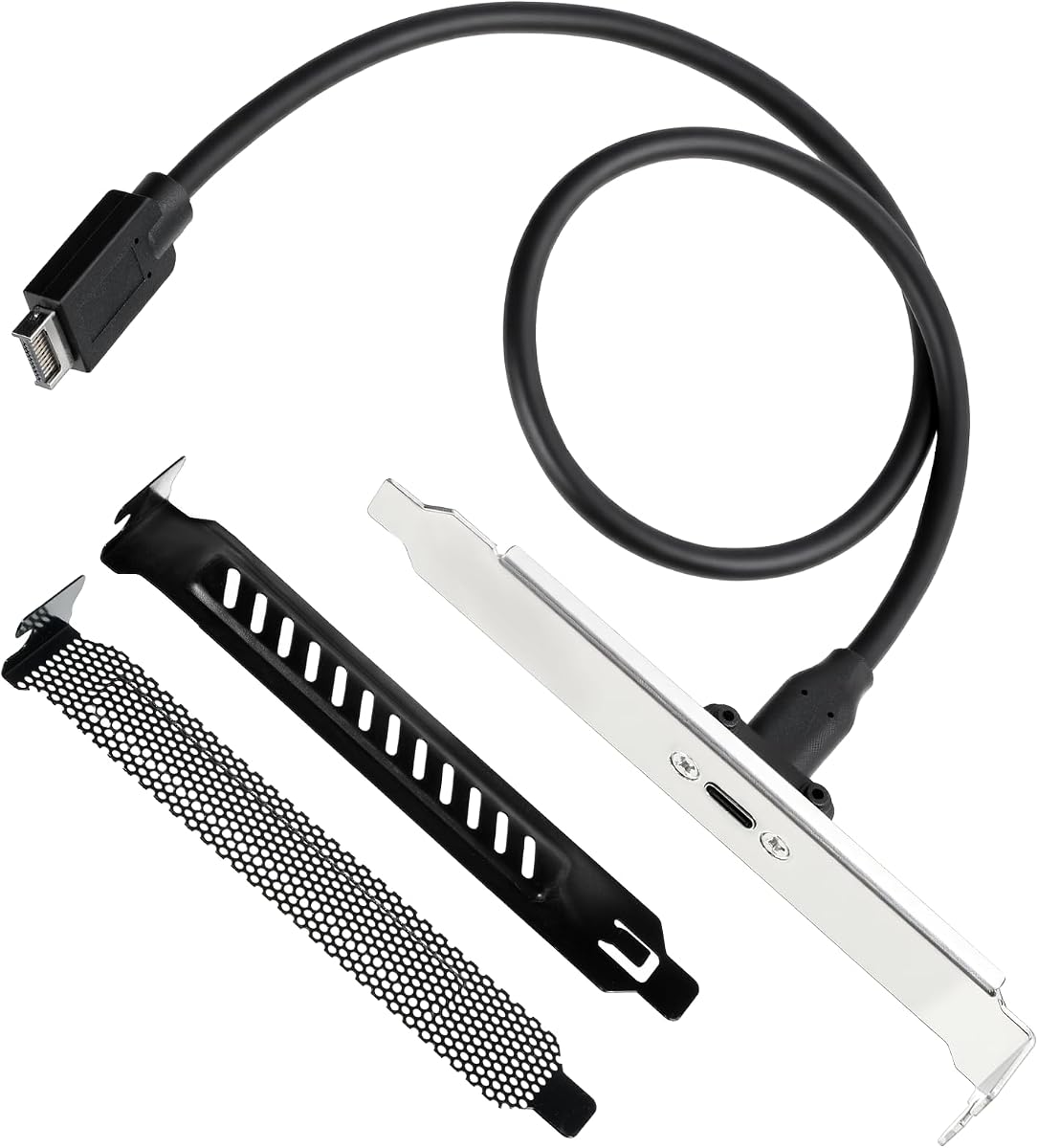
The Motherboard USB 2.0 to Type C Front Panel Cable is a straightforward way to bring USB-C access to a system with a nine-pin USB 2.0 header. It has the highest supplied rating in the group at 4.8, although ratings should be considered alongside its deliberately modest data specification. The adapter is best understood as an inexpensive convenience upgrade for everyday peripherals.
We may earn a commission when you buy through this link, at no additional cost to you.
The cable provides a maximum data transfer rate of 480Mbps under the USB 2.0 standard. Its motherboard end uses a nine-pin connector, and the external end is USB-C. The total length is approximately 17 centimeters, or 6.6 inches, which is enough for many compact desktop layouts but less useful when the header and case opening are widely separated.
Installation is especially simple because the product requires no drivers and operates as a plug-and-play extension. Its short, flexible lead can be routed directly behind the front panel with little intrusion into the case. This makes it a practical fit for a basic office computer, a compact home build, or a case that includes a front USB-C opening without a compatible high-speed motherboard header.
The limitations must be respected. It is not compatible with a 19-pin USB 3.0 header, does not deliver USB 3.0 speed, and does not support video or audio output. The USB-C connector may also charge compatible devices, but it should not be treated as a general-purpose high-wattage charging solution based on the supplied specifications. For fast storage or displays, a more capable header is required.
This is the best budget choice in the guide when the goal is simply front USB-C access and the motherboard has USB 2.0. It offers the highest supplied rating without pretending to provide high-speed data transfer. Buyers should confirm the nine-pin header, account for the short cable, and avoid it if their use case requires USB 3.x throughput or display output.
A mouse, keyboard, flash drive, or other basic USB-C peripheral can be connected without using a rear port. The 480Mbps ceiling is ample for many routine tasks but not for demanding external storage workflows.
The nine-pin plug and short lead reduce installation complexity. It is a good option for adding a case connector when USB 2.0 is the only internal USB header available.
We may earn a commission when you buy through this link, at no additional cost to you.
The USB 3.2 Gen 2×2 Front Panel Type-C Adapter delivers the headline 20Gbps capability at a basic 5Gbps alternative level, making it a relevant option for modern motherboards that expose the correct Type-E header. Its supplied rating is 3.8, the lowest in this comparison, so buyers should assess the full specification and fit rather than focusing on the headline transfer rate.
We may earn a commission when you buy through this link, at no additional cost to you.
The cable connects a female panel-mount USB-C port to a labeled 20-pin USB Type-E A-Key male header. A dedicated USB 3.2 Gen 2×2 host controller is required for the full 20Gbps rate. The external connector can be used with modern smartphones, tablets, storage drives, and other USB-C equipment, while the 50-centimeter lead provides practical routing room in most desktop cases.
The product uses metal and PVC materials, with flexible PVC-insulated wiring intended to resist bending and breaking. It comes with an installed metal PCI bracket, two additional slot covers, and a length specification of 19.7 inches in the listing. The labeled Type-E connector helps reduce orientation errors, and the bracket provides a more finished appearance than an unsupported loose panel socket.
Installation needs no drivers or software. The internal connector should be inserted with the correct orientation, after which the extension can be routed and secured. The major trade-off is compatibility: a system with only a 19-pin USB 3.0 header cannot use this adapter directly. The product also does not add USB-A ports, so builders seeking a broader front-panel hub should consider one of the multi-port alternatives.
For a compatible build, this is a functional 20Gbps adapter with useful mounting accessories. Its 3.8 supplied rating suggests mixed customer experiences, although the listed construction and labeling address common installation concerns. Check the motherboard header and case opening first, and use the bracket covers to finish the unused slot area cleanly.
The included PCI bracket and two slot covers help secure the connector and finish the case interior. This is useful for builders who want a stable panel mount rather than a loose connector supported only by its cable.
Labeling on the 20-pin Type-E A-Key plug helps identify the correct orientation and distinguishes it from a 19-pin USB 3.0 header. Compatible header and controller checks remain essential.
We may earn a commission when you buy through this link, at no additional cost to you.
The SinLoon USB 3.1 Front Panel Header Type-C Extension Cable provides a 10Gbps Type-E-to-USB-C connection with a supplied rating of 4.3. It is a compact alternative for builders who do not need the newest 20Gbps standard but still want a direct front-panel port rather than a full PCIe or drive-bay expansion unit.
We may earn a commission when you buy through this link, at no additional cost to you.
The internal plug is a 20-pin USB Type-E male connector, while the panel side is a female USB-C socket. The listing describes USB 3.2 Gen2 performance up to 10Gbps with backward compatibility for 5Gbps USB devices. It also states support for power delivery functions up to 100W, making the connection relevant to compatible charging accessories as well as data devices.
The 30-centimeter, or 11.8-inch, cable uses a thin, flat TPE construction described as flexible enough for repeated 180-degree folding. Sixteen conductors and four high-speed signal wires are listed, while silver plating and double shielding are intended to support stable high-speed transmission. A panel screw with 20-millimeter spacing helps secure the socket to the case.
The main compromises are length and bandwidth ceiling. A 30-centimeter lead is less forgiving than the 50-centimeter or 23.6-inch options elsewhere in the guide, so it works best when the Type-E header sits close to the front panel. TenGbps is still capable for many accessories, but it is half the headline rate of the Gen 2×2 products and not appropriate when maximum transfer speed is the primary requirement.
This cable suits a compatible motherboard, a case with a standard USB-C opening, and a builder who values a thin, flexible internal route. Its reversible external connector simplifies daily use, and no driver is required. Check that the motherboard has a 20-pin Type-E header, confirm the panel screw spacing, and ensure the short lead can reach the intended opening.
The flat TPE cable is designed to bend and fold without the bulk associated with many round extension leads. It is particularly helpful behind compact front panels or beside tightly grouped motherboard headers.
The stated 100W power supply function adds value for compatible charging setups, while 10Gbps data transfer covers many routine peripheral and storage tasks. Actual behavior depends on the host, cable path, and attached device.
We may earn a commission when you buy through this link, at no additional cost to you.
The USB3.2 USB-C Front Panel Adapter is a feature-focused three-port assembly with a supplied rating of 5.0, the highest numerical rating in the guide. It combines one 20Gbps USB-C front connector with two USB 3.0 Type-A front connectors. That combination makes it a strong choice for a modern desktop that wants several accessible ports without consuming a full 3.5-inch bay.
We may earn a commission when you buy through this link, at no additional cost to you.
Its internal wiring connects to a 20-pin Type-E Key-A header for USB-C and a 19-pin USB 3.0 header for the Type-A ports. The USB-C path is advertised at USB 3.2 Gen 2×2 speeds up to 20Gbps, while the Type-A connections support USB 3.0 at 5Gbps and remain compatible with USB 2.0 devices. A full-speed 20Gbps connection still requires a motherboard and device that support Gen 2×2.
The assembly includes a PCIe bracket for securing the panel connector and uses double-shielded wiring intended to reduce electromagnetic interference. Plug-and-play operation removes the need for driver installation. Its multi-port arrangement is especially helpful for users who regularly move between a USB-C device and two conventional peripherals, since all three can be reached from the same front-panel location.
The trade-off is header consumption and physical routing. Both internal connectors must be available, and the case needs an appropriate opening for the panel hardware. The PCIe bracket offers a mounting route, but the combined cable and connector structure may require careful arrangement in a compact chassis. As with every high-speed option, advertised bandwidth is a ceiling rather than a guaranteed result for every device.
This is the premium selection because it offers the most capable combination of front connectivity in the guide: a 20Gbps USB-C port, two 5Gbps USB-A ports, shielded construction, and a mounting bracket. It is best for a modern, well-equipped motherboard with both required headers. Confirm case spacing and route the cable gently before securing the connector.
One high-speed USB-C port and two USB-A ports cover both current accessories and legacy devices. This makes the assembly more versatile than a single-connector extension without taking up a larger drive-bay space.
Double shielding is intended to protect signal integrity, while the PCIe bracket helps maintain a stable external connection. Together they support a cleaner and more durable internal installation.
We may earn a commission when you buy through this link, at no additional cost to you.
The right front panel USB C header depends less on connector appearance than on exact motherboard headers, supported USB generation, case geometry, and expected peripherals. Reviewing those factors before purchasing prevents common compatibility problems and helps narrow the list to the most useful design.
Start with the motherboard manual and locate every internal USB header. A front panel adapter must match both the connector type and supported standard: a nine-pin USB 2.0 header is limited to 480Mbps, a 19-pin USB 3.0 header supports a different cable family, and a 20-pin USB 3.2 Type-E Key-A header is required for the highest-speed Type-E extensions. Visual similarity does not guarantee compatibility, so confirm the pin count, keying, and generation before ordering.
In summary, verify the exact internal header first; every other performance and installation decision depends on that match.
USB 2.0 at 480Mbps is adequate for many simple accessories but may be limiting for external storage. USB 3.2 Gen1 and USB 3.0 provide 5Gbps, while USB 3.2 Gen2 supports 10Gbps. The newest adapters here advertise USB 3.2 Gen 2×2 at 20Gbps, but that maximum requires a compatible host controller and attached device. The port rating alone never guarantees the final transfer rate.
In summary, select the generation that matches your storage, peripherals, and workflow rather than buying solely for the largest advertised number.
A USB-C shape does not automatically mean the same charging capability. Some products in this category specify 100W power delivery, while others are described only as data connections. The motherboard, internal wiring, adapter, case connector, and attached charger all influence charging behavior. If charging is important, look for an explicit power-delivery claim and verify that the computer's upstream port supports the desired output.
In summary, treat USB-C data speed and charging capability as separate specifications and require explicit support for both when both are needed.
Cable length ranges from a compact 17 centimeters to 23.6 inches in these selections, with several products near 30 or 50 centimeters. A longer cable provides easier routing in full-size or densely packed cases, but excess length can interfere with airflow, drive cages, or component clearance. A short cable works well in compact layouts but may not reach between widely separated connectors. Measure both the distance and the bend path before selecting.
In summary, choose enough length for a gentle service loop without leaving unused cable obstructing internal components.
Simple extension cables use little space and preserve the case's existing front opening. Internal 3.5-inch hubs provide several ports in one unit but require an unused drive-bay position and, on some models, SATA power. PCIe cards add external Type-A and Type-C ports but occupy a PCI Express slot. Panel-mounted assemblies look tidy and can use a bracket, yet their connector size must fit the chosen case opening.
In summary, balance port count against the physical space and expansion slots your build can realistically spare.
Shielded wiring can reduce interference in systems with high-power or high-clock components. Metal connectors and screw-mounted housings generally resist movement better than unsupported loose sockets. Look for clearly labeled internal plugs, which help prevent orientation errors around the small keying used by Type-E headers. Protective circuitry is also worth considering for powered hubs that will remain connected while several devices are in use.
In summary, favor secure mounting, shielded wiring, clear labeling, and stated protection when the adapter will be permanently installed.
Most Type-E extensions and drive-bay hubs operate without drivers. The PCIe card has more nuanced compatibility guidance, particularly for older Windows releases, server environments, macOS, Linux, and some Dell motherboard combinations. A system with a USB 2.0-only adapter can still provide data access, but it cannot become a high-speed USB 3.x connection through the cable alone.
In summary, check the stated operating-system support and the adapter's internal requirements, especially for a PCIe-based solution.
A single USB-C port is sufficient when the build has other front USB-A connections. A multi-port hub makes more sense when a user regularly changes devices or wants several front-accessible sockets. Mixed-port adapters can preserve compatibility with controllers, keyboards, and legacy drives. Consider whether faster USB-C or more connector types offers greater practical value for the intended setup.
In summary, prioritize the connector mix and usage pattern over raw port count when the system already provides adequate front access.
Begin with a complete shutdown, unplug the power cord, and hold the computer's power button briefly to discharge residual power. Open the side panel and locate the exact motherboard header identified in the manual. Connect the internal plug with the power disconnected, using the keying and any printed orientation marking to avoid forcing it into the wrong position.
Route the extension behind the front panel without pinching it against the chassis, fans, radiators, or drive cages. Secure the panel connector with its screw or PCIe bracket where applicable. Leave a small service loop rather than pulling the cable taut, and check that neither the motherboard connector nor the external socket is under strain when the case is closed.
Reconnect power and boot the system, then attach the intended USB-C device. If the connection is not recognized, disconnect it and check both internal plug orientation and the motherboard header type. Do not force an incompatible connector. For a PCIe card, confirm that the slot is available and the bracket is secured. Periodically inspect the cable for damage, and keep both ends free of dust.
The 20Gbps Type-E extensions require a 20-pin USB 3.2 Type-E Key-A header. They are not directly compatible with a nine-pin USB 2.0 header or a 19-pin USB 3.0 header. Even with the correct Type-E connector, full 20Gbps throughput also requires a compatible motherboard controller and attached USB-C device.
The physical connector will usually fit, but capabilities depend on the USB generation and features supported along the entire connection path. A USB 2.0 adapter cannot deliver USB 3.x speed, and a 10Gbps adapter cannot reach 20Gbps. Charging, display output, and data transfer should each be checked independently.
It depends on the adapter. A motherboard with a nine-pin USB 2.0 header can use a dedicated USB 2.0 front panel cable, while a motherboard with a free PCIe slot may support a PCIe-based USB-C expansion card. Older boards with only a 19-pin USB 3.0 header generally need a product specifically designed for that connector rather than a Type-E cable.
No. The number is a maximum supported rate, not a guaranteed result. The motherboard controller, device, storage medium, operating system, and connection path can all limit performance. A device limited to USB 3.2 Gen2 will normally remain at 10Gbps even when connected through a Gen 2×2 adapter.
They are generally straightforward if the case has an unused 3.5-inch bay and the motherboard has the specified headers. The unit must be aligned with the opening and secured with the included screws. Some models also require SATA power, so confirm the cable can reach without tension and that the bay is not occupied.
A PCIe card is useful when the motherboard lacks a Type-E header and has an available PCI Express slot. It may also provide both Type-A and Type-C connectors without relying on a case opening. The trade-off is that it occupies expansion space and the listed card supports 5Gbps rather than the highest 20Gbps rates available from compatible Type-E products.
It depends on the product and the motherboard path. The USB 2.0 front panel cable explicitly does not support video or audio, while higher-speed adapters may work when the motherboard supports DisplayPort Alternate Mode through that header. Check the motherboard manual and the adapter specifications rather than assuming every USB-C connection carries display signals.
Keep the cable away from fans, sharp metal edges, hot components, and areas where it could be pinched when the side panel closes. A relaxed service loop helps prevent strain on the motherboard connector. Avoid tightly folding the cable at a sharp angle, particularly for the thinner TPE and PVC constructions.
The GRAUGEAR 20Gbps Type E Key A extension is the strongest all-around choice because it combines high potential bandwidth, a long routing cable, broad device compatibility, and an included mounting bracket. The USB 2.0 Type C cable is the budget option for basic accessories and older nine-pin headers, while the dual-connector 20Gbps adapter offers the most complete premium front-port mix.
Prioritize exact motherboard-header compatibility before considering transfer speed or port count. A 20Gbps adapter is useful only with the proper Type-E path and matching hardware, while a PCIe card may be more practical on a board without that header. Case opening size, cable routing, mounting hardware, and the number of spare motherboard headers should all be confirmed before ordering.
Product listings, ratings, specifications, and availability can change over time, so check the current details and user feedback when making a final purchase. Reviewing the motherboard manual alongside the adapter package contents will help ensure the selected front panel USB C header fits both the build and the devices it is intended to serve.