
RubensTab T11 Pro
4.4Editor score
Fully standalone 10.1-inch tablet
Pressure-sensitive battery-free pen
Preinstalled creative app suite
An iPad is only one option for creating digital art, and the strongest alternatives range from compact standalone tablets to professional pen displays that work with a computer. A useful drawing device should deliver precise pen input, a comfortable viewing experience, dependable battery life, and access to the creative software that matches your preferred workflow.
We compared the ten products in this guide on the factors that materially affect artwork: screen size, resolution, pressure sensitivity, tilt support, display color, portability, battery capacity, included applications, operating system, and whether a separate computer is required. The list covers both portable standalone tablets and desktop-oriented drawing monitors.
Each pick reveals what kind of artist it is best suited for, along with the compromises involved in choosing it over an iPad. Standalone models provide freedom from cables, while computer-connected displays often suit professional illustration and design software. Product availability and pricing can change, so verify the current listing and software compatibility before purchasing.
4.4Editor score

4.5Editor score

4.5Editor score
As an Amazon Associate we earn from qualifying purchases.
This side-by-side comparison highlights each alternative's display, pen capabilities, power arrangement, portability, and best-fit use case, helping readers distinguish standalone tablets from professional drawing monitors.


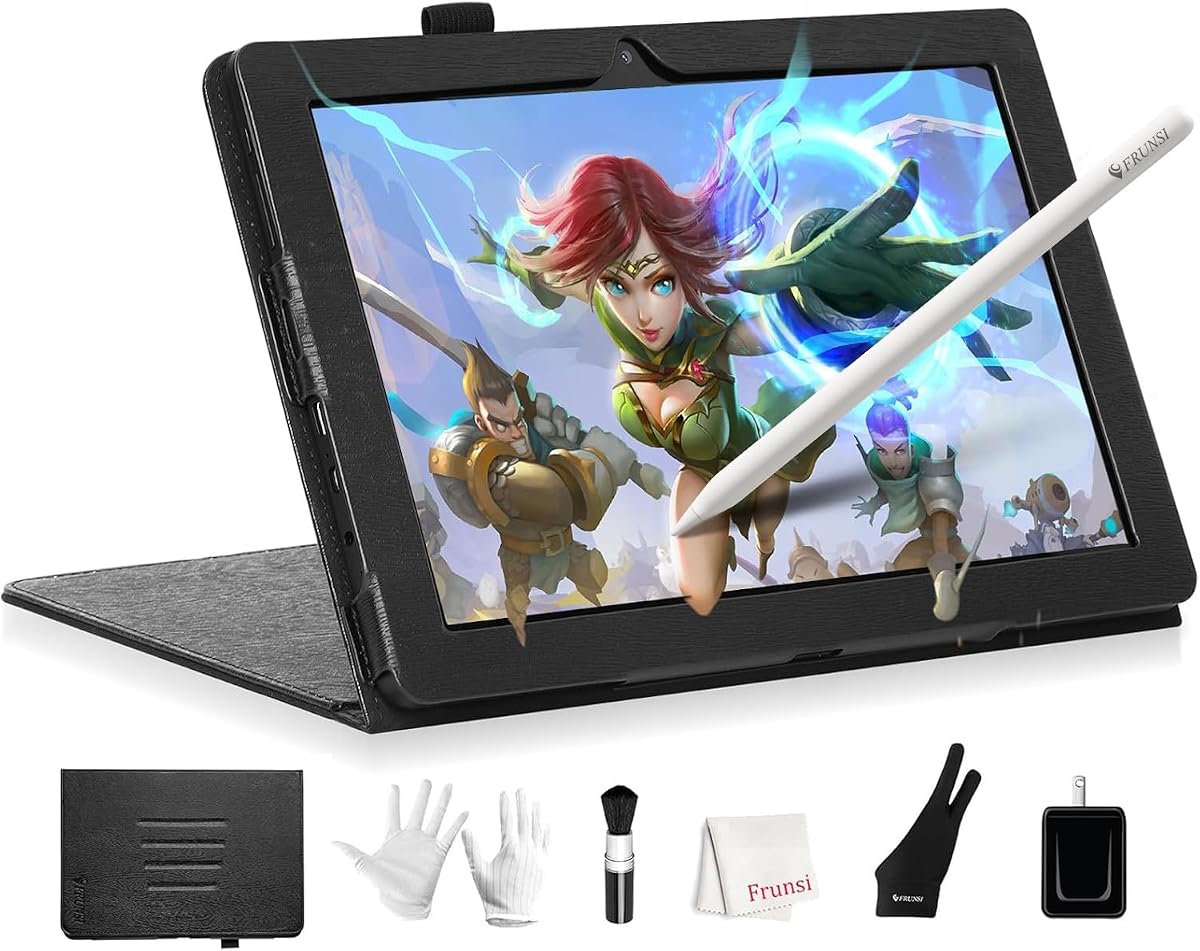

The RubensTab T11 Pro is a compact standalone drawing tablet rated 4.4 stars. It combines a 10.1-inch Full HD IPS screen, a battery-free pressure-sensitive pen, and preinstalled creative applications in one device. Its main advantage is independence: artists can power it on and draw without connecting a laptop, making it a practical alternative to an iPad for sketches, notes, illustrations, and mobile practice.
We may earn a commission when you buy through this link, at no additional cost to you.
The 1920-by-1200 resolution provides enough sharpness for everyday digital art, while the pen's adjustable pressure sensitivity supports varied line widths and shading. Multi-touch gestures add useful zooming, panning, and scrolling, and the included adjustable stand case supports both desktop work and travel. A 5,800mAh battery is rated for up to five hours of continuous use, with USB-C charging and power-bank support adding flexibility.
The limitations center on display size and professional color specifications. A 10.1-inch screen is less suitable for detailed illustration than a larger pen display, and the product description does not claim the high color-gamut coverage or extensive shortcut controls found on dedicated studio monitors. It is also a general-purpose standalone tablet rather than a specialized computer-connected display, so demanding desktop applications may not provide the same workflow.
Even so, the T11 Pro is a strong fit for beginners, students, sketchers, and artists who value cordless operation over professional desktop specifications. It provides the essential pen-and-screen experience at a modest size without requiring an additional computer. For a budget-conscious entry into standalone digital art, it is one of the most approachable choices in this guide.
The T11 Pro is genuinely useful away from a desk because the drawing software, pen, display, battery, and stand are all incorporated into a single device. That makes it convenient for classroom work, travel, meetings, and quick idea capture without arranging cables or relying on a nearby laptop.
Its pressure-sensitive battery-free pen removes the need to recharge a second accessory, while multi-touch support helps with canvas navigation. The Full HD IPS panel delivers clear detail, although the compact 10.1-inch dimensions make it better suited to sketches and smaller illustrations than expansive digital paintings.
We may earn a commission when you buy through this link, at no additional cost to you.
The HUION Kamvas Pro 16 is a 4.5-star pen display built for artists who work at a desk with a computer. Its large 15.6-inch full-laminated screen, anti-glare glass, and slight surface texture are designed to make prolonged digital drawing feel more natural. It offers a spacious, professional canvas without asking users to work on a small built-in tablet screen.
We may earn a commission when you buy through this link, at no additional cost to you.
Color performance is a major strength. The display covers 120% sRGB and 92% AdobeRGB within a 16.7-million-color, 8-bit specification, with a 1000:1 contrast ratio. A battery-free pen supports accurate tracking, 60-degree tilt recognition, and two programmable side buttons. Six express keys and a touch bar provide shortcuts for zooming, brush sizing, and other repeated operations.
The included ST200 stand adjusts from 20 to 60 degrees, allowing artists to select a comfortable viewing and drawing posture. Compatibility includes Windows, macOS, and Linux, along with major creative applications such as Photoshop, Clip Studio Paint, SAI, and Lightroom. A three-in-one USB-C cable simplifies HDMI and other connections, but the product explicitly requires a computer or laptop.
This requirement is the main distinction from an iPad. Artists who rely on desktop-only software, precise shortcut workflows, and a large calibrated-looking workspace will appreciate the Kamvas Pro 16 considerably. Those who sketch in cafés, travel, or work without a computer should choose a standalone model instead. For professional desk-based illustration, it is the strongest overall selection here.
The 15.6-inch display gives illustrators room to arrange reference images, complex brushwork, and detailed compositions without constantly zooming or switching views. Its full-laminated construction also helps reduce the visual separation between pen and cursor.
Six express keys, a touch bar, and two programmable pen buttons let artists map common commands to the physical controls. This keeps tools such as zoom, brush adjustment, and canvas rotation close at hand during a focused session.
We may earn a commission when you buy through this link, at no additional cost to you.
The RubensTab T14 is a standalone drawing tablet rated 4.4 stars that combines a large 14.1-inch Full HD IPS display with a pressure-sensitive pen and preinstalled creative software. Its generous canvas is closer in proportion to a small pen display than a typical compact tablet, making it an appealing middle ground for illustrators who want both mobility and room to work.
We may earn a commission when you buy through this link, at no additional cost to you.
The device operates independently, so no computer is needed for sketching, illustration, note-taking, or classroom work. Its octa-core processor supports daily multitasking, while a 10,000mAh battery is rated for up to five hours of continuous use. USB-C charging and compatibility with mobile power banks make it easier to sustain longer sessions away from an outlet.
Pen input supports adjustable pressure sensitivity, and multi-touch is available for navigation. The product includes an adjustable stand case, Wi-Fi access, drawing applications, and tutorials intended to help beginners start quickly. The trade-off is that its stated display specification focuses on Full HD resolution rather than the 2K-class detail, advanced color calibration, or high refresh rates available on some newer alternatives.
The T14 is well suited to students, traveling illustrators, and artists who want a larger cordless canvas. It is especially compelling for sketching, character work, classroom exercises, and presentations where touching the screen directly is important. For color-critical professional work or intensive desktop application use, a dedicated pen display may be the better route. For cordless space, however, the T14 is compelling.
The 14.1-inch screen offers a significantly broader drawing area than the T11 Pro while remaining fully independent. This combination makes it useful for both quick sketches and more developed illustrations when an iPad or laptop is unavailable.
Preinstalled drawing applications and tutorials reduce the initial setup barrier. The adjustable stand case also supports different working positions, making the device practical for lessons, brainstorming sessions, and everyday creative work.
We may earn a commission when you buy through this link, at no additional cost to you.
The Wacom MovinkPad 11 is a premium standalone Android drawing tablet with a 4.4-star rating. Built around Wacom's established pen technology, it combines an 11.45-inch etched-glass screen, an 8,192-level Pro Pen 3, and an Android 14 system. Its defining feature is the balance between sketchbook-like tactility and genuinely portable dimensions.
We may earn a commission when you buy through this link, at no additional cost to you.
The matte etched surface is designed to reduce glare and fingerprints while giving the pen a subtle paper texture. The battery-free Pro Pen 3 provides three buttons and stores replacement nibs in its rear end. Tap-and-hold activation opens Wacom Canvas quickly, creating a more immediate path from inspiration to sketching than manually navigating through apps.
Portable hardware is handled unusually well: the tablet weighs 1.3 pounds and supports popular pens from Dr. Grip, LAMY, and STAEDTLER. It comes with Wacom Canvas, two years of CLIP STUDIO PAINT DEBUT, and trials of several other creative applications. The trade-offs are the 128GB storage capacity and the fact that access to some listed creative tools may depend on trial periods or paid upgrades.
This is an excellent choice for an artist who values pen feel, portability, and immediate sketching over maximum internal storage. It is particularly persuasive for travel, life drawing, field sketching, and note-taking. For users already invested in subscription-based creative software, compare access terms carefully. For those wanting a refined mobile sketchbook, the MovinkPad stands out in this roundup.
The etched-glass surface offers subtle texture and reduced visual distractions, while the slim Pro Pen 3 avoids the charging burden of a rechargeable stylus. Together they create a drawing experience designed to resemble a traditional sketchbook more closely than a standard glass tablet.
Tap-and-hold pen activation launches Wacom Canvas, reducing the friction between capturing an idea and drawing it. The lightweight body also makes spontaneous sketching more practical than carrying a larger tablet or setting up a desk-based pen display.
We may earn a commission when you buy through this link, at no additional cost to you.
The PicassoTab A10 is a compact standalone drawing tablet that combines a 10-inch laminated display with a 4,096-level active stylus. Rated 4.2 stars, it is designed as a convenient starting point for artists who want to draw immediately without assembling a separate computer, display, or input device.
We may earn a commission when you buy through this link, at no additional cost to you.
The laminated panel is intended to reduce glare and parallax, giving the stylus a smoother, more paper-like relationship with the image. The tablet ships with applications for drawing, painting, animation, tutorials, and guided lessons. Lifetime upgrades for Concepts and Artixo add structured learning resources, while a drawing glove, case, power adapter, and screen protector improve the complete package.
Its octa-core processor, 6GB of memory, and 64GB of storage should handle drawing applications and general tablet tasks, with storage expandable up to 1TB. As a standalone device, it can also support schoolwork, streaming, and everyday multitasking. The compromises are its smaller display and lower stated pen-pressure resolution compared with professional 16,384-level styluses.
The A10 is most appropriate for beginners, younger students, casual sketchers, and anyone who values a complete learning package. It is less convincing for a professional working on detailed, full-screen compositions, but its laminated surface, bundled pen, and guided tutorials make starting out straightforward. It is one of the simplest ways to move from paper sketches to a self-contained digital practice.
The included stylus, creative applications, tutorials, case, glove, adapter, and screen protector create a ready-to-use bundle. New artists do not need to research compatible accessories before making their first sketch.
The 10-inch laminated display supports precise work while remaining easy to carry. An octa-core processor and expandable storage provide enough flexibility for drawing, lessons, entertainment, and routine productivity tasks.
We may earn a commission when you buy through this link, at no additional cost to you.
The XPPen Artist 13.3 Pro V2 is a 4.5-star pen display aimed at artists who want fine pen control and a desktop software workflow. Its fully laminated 13.3-inch FHD display minimizes parallax, while the battery-free stylus supports 16,384 pressure levels, 60-degree tilt, and a stated response rate of 220 RPS.
We may earn a commission when you buy through this link, at no additional cost to you.
A particularly useful control is the Red Dial. Positioned for a natural drawing posture, it can be mapped to zoom, brush sizing, or canvas rotation. Eight customizable shortcut keys supplement the dial, providing direct access to frequently used commands without repeatedly navigating software menus. The included multifunctional pen case doubles as a stand and holder and includes eight replacement nibs.
Color specifications list 88% NTSC, Adobe RGB of at least 91%, and sRGB of at least 123%, paired with a 178-degree viewing angle. Compatibility spans Windows, macOS, Chrome OS, and Linux, including major programs such as Photoshop, Illustrator, SAI, and Blender 3D. Unlike an iPad, however, this is not standalone: a computer or laptop and the included three-in-one cable are required.
That limitation is acceptable for illustrators who already use desktop creative software and value pressure fidelity, tilt, and physical controls. It is a less suitable option for mobile sketching or people who want one device to handle every task. For a desk-based workflow, the Artist 13.3 Pro V2 offers one of the strongest combinations of precision and physical controls in this guide.
The 16,384 pressure levels and 60-degree tilt support allow for subtle tonal transitions and brush-like shading. A low initial activation force and lag-free response make the stylus feel responsive for long drawing sessions.
The Red Dial and eight customizable shortcut keys place common actions directly under the artist's hand. Users can configure them for the functions they use most, including zoom, brush changes, and canvas manipulation.
We may earn a commission when you buy through this link, at no additional cost to you.
The PicassoTab X14 is a large standalone drawing tablet built around a fully laminated 14-inch screen and a 4,096-level active pen. With a 4.2-star rating, it offers a broad canvas for learners and artists who want standalone operation without the smaller working area of a compact tablet.
We may earn a commission when you buy through this link, at no additional cost to you.
Its software bundle includes five applications for drawing, painting, animation, tutorials, and guides. Lifetime upgrades for Concepts and Artixo make the package particularly learning-oriented. The bundle also includes a case, drawing glove, universal power adapter, and a preinstalled screen protector. These extras reduce the friction of setting up a new portable creative system.
An octa-core CPU, 6GB of memory, and 128GB of storage support drawing apps, school tasks, streaming, and general multitasking. Storage can be expanded up to 1TB. The laminated display is intended to reduce glare and parallax, while the pressure-sensitive pen supports expressive sketching and illustration. Its main limitation is that its stated pen and display specifications do not reach the resolution, color detail, or refresh rate of higher-end alternatives.
The X14 is a sensible choice for students, families, and casual artists who want a large screen and guided creative resources in one package. It can support more involved work than the A10 while preserving the freedom of standalone use. Professionals who rely on precise color management or desktop-only software may prefer a dedicated pen display instead.
The 14-inch laminated screen creates room for reference material, character sketches, and larger illustrations. Its fully bonded construction helps minimize parallax, supporting a more direct connection between stylus position and mark placement.
Drawing and animation applications, guided tutorials, lifetime app upgrades, and included accessories create a low-friction starting point. The X14 is particularly well suited to learners who want structured instruction alongside a capable independent canvas.
We may earn a commission when you buy through this link, at no additional cost to you.
The HUION KAMVAS Pad 12 2K+ is a high-spec standalone drawing tablet rated 4.5 stars. It combines a 12.2-inch 2K+ display, 16,384 pressure levels, 90Hz refresh rate, and a modern Android 16 system in a portable body. This is the most technically advanced standalone configuration in the guide.
We may earn a commission when you buy through this link, at no additional cost to you.
The 3:2 screen provides more vertical space than a conventional 16:9 tablet, while 236 PPI and 350 nits deliver clear detail. Color coverage is listed at 99% sRGB with factory calibration under ΔE<1.8, and the device is preset to sRGB mode. Canvas Glass 3.0 uses nano-etching to reduce glare, while the coating resists fingerprints and preserves touch responsiveness.
Its PenTech 4.0 pen supports 16,384 pressure levels, plus or minus 60-degree tilt, a 2g initial activation force, tilt auto-alignment, and a 0.35mm retraction system. An eight-core processor, 8GB of memory, and 256GB of expandable storage handle multiple applications. HiPaint, Clip Studio Paint, ibisPaint X, MediBang Paint, and Huion Note are preinstalled.
The 8,000mAh battery is rated for up to a full day of use, and the 1.47-pound, 0.31-inch body is easy to carry. Compared with the iPad, it offers a pen-focused display and a more specialized drawing environment, but its application ecosystem depends on Android availability. It is a premium choice for mobile artists, students, and anyone who values resolution, pen precision, and color accuracy.
The combination of 2K+ resolution, 236 PPI, and a 90Hz refresh rate supports detailed artwork and fluid visual feedback. The taller 3:2 format also gives illustrators a more vertical working area for character work and full-page compositions.
Sixteen thousand pressure levels, 60-degree tilt, low initial activation force, and auto-alignment features support subtle line variation and natural shading. These specifications make the tablet suitable for artists who want greater control than a basic stylus tablet provides.
We may earn a commission when you buy through this link, at no additional cost to you.
The T8 is an 8-inch standalone drawing tablet designed for maximum portability. Rated 4.4 stars, it runs Android 13 and offers a 1200-by-800 display, pressure-sensitive drawing capability, and a battery-free pen. It is among the smallest choices here, making it closer in size to a compact sketchbook than a conventional tablet.
We may earn a commission when you buy through this link, at no additional cost to you.
An MTK quad-core processor, 4GB of memory, and 64GB of expandable storage are sufficient for drawing applications and everyday creative tasks. The tablet supports apps such as SketchBook, ArtFlow, and ibisPaint X, while preinstalled applications and tutorials help users begin without arranging a full software setup. Wi-Fi connectivity provides access to additional resources and cloud services.
The 4,000mAh battery is rated for as long as 20 hours of drawing, which is a standout portability benefit. Its principal limitation is the 8-inch display, which offers less working space for intricate illustrations and requires frequent zooming when working on complex compositions. The quad-core specification and 4GB of memory also place it below the higher-end standalone tablets in this list.
The T8 is best for commuters, travelers, students, and artists who create quick sketches, thumbnails, diagrams, or handwritten notes away from a desk. It is less suitable as the primary display for professional digital painting. Its appeal lies in portability, simple Android operation, and the freedom to sketch almost anywhere without carrying a computer.
The compact body is easy to carry and can be used without a computer, cables, or a fixed workspace. For quick concepts, travel sketches, and note-taking, the device offers a practical degree of freedom that larger tablets cannot match as easily.
A stated battery endurance of up to 20 hours makes the T8 useful for long periods away from an outlet. Its Android app compatibility provides access to familiar creative programs when the required applications are available for the platform.
We may earn a commission when you buy through this link, at no additional cost to you.
The Callsky-Tab Ctab 12 is a 12-inch Android 15 drawing tablet rated 4.2 stars. Its defining combination is a sharp 2K IPS display, substantial internal specifications, and a rechargeable stylus with tilt support. It is designed to function as both a drawing device and a general-purpose multimedia tablet.
We may earn a commission when you buy through this link, at no additional cost to you.
A T616 octa-core processor, 16GB of memory, and 256GB of expandable storage support creative applications, online teaching, video calls, and multitasking. The 4096-level pen detects tilt for varied line and shading effects. A magnetic attachment helps keep the stylus accessible, and the included drawing glove reduces unwanted contact with the screen.
The 12-inch anti-glare IPS display offers wide viewing angles and a 2K resolution, making it useful for detailed artwork, lessons, presentations, and media viewing. The included flip case supports three folding positions for different viewing and typing angles. Its 8,000mAh battery is rated for up to six hours of video playback or creative work, and the reinforced Type-C port supports convenient charging.
The Ctab 12 is a good general-purpose choice for users who want one device for drawing, teaching, communication, and entertainment. Its pressure specification is less advanced than that of the XPPen Artist 13.3 Pro V2 or HUION KAMVAS Pad 12 2K+, so professional illustrators should assess pen fidelity carefully. For broader productivity use, it offers a capable and balanced package.
The combination of a 2K display, 16GB of memory, and 256GB of storage supports more than sketchbook tasks. Online teaching, video communication, note-taking, animation work, and media consumption can all be handled without relying on a separate general-purpose tablet.
The magnetic stylus attachment and included drawing glove support a cleaner working setup. A three-position flip case lets users switch among propped viewing, typing, and lower viewing angles according to the task.
We may earn a commission when you buy through this link, at no additional cost to you.
The right alternative depends on whether portability, desktop software, pen precision, color accuracy, or educational support matters most. These factors help narrow the field before comparing screens, styluses, processors, and included accessories.
A standalone drawing tablet includes its own operating system, processor, memory, storage, battery, and creative applications, so you can draw without a separate computer. This is ideal for travel, classes, field sketches, and quick idea capture. A computer-connected pen display, by contrast, acts as a precise input and display surface for desktop software. It generally provides a more familiar professional workflow, larger screens, and dedicated shortcut controls, but it cannot operate away from a host computer.
Screen size affects both portability and creative freedom. An 8-inch model is convenient for quick sketches but requires frequent zooming for detailed work. A 10-inch display serves as a practical general-purpose compromise, while 12-inch to 13.3-inch screens provide more room for illustrations and reference material. Larger 14-inch and 15.6-inch devices are better suited to broad compositions and desk-based work. Aspect ratio also matters because a 3:2 display offers more vertical space than a standard widescreen tablet.
Pressure sensitivity determines how naturally a pen responds to changes in force, affecting line width, shading, opacity, and brush behavior. A 4,096-level stylus is capable for many drawing and illustration tasks, while 8,192 or 16,384 levels provide finer tonal transitions for demanding artwork. Tilt recognition supports brush-like shading and broad strokes. Other useful pen details include low initial activation force for delicate lines, programmable buttons, lag-free tracking, and replacement nibs stored in the barrel.
A sharp display makes small strokes, thin lines, and subtle color transitions easier to judge. Full HD is adequate for many casual uses, while 2K or 2K+ resolution offers more useful detail for illustration and design. Color-gamut coverage and calibration matter for graphic designers, with sRGB coverage being a practical baseline and wider AdobeRGB coverage beneficial for professional color workflows. Etched or laminated surfaces can reduce glare, reflections, fingerprints, and the distance between the pen tip and perceived line.
Drawing performance depends on more than the display. A capable processor and sufficient memory help keep layers, brushes, and reference images responsive, especially when several applications are open. Storage should accommodate large illustration files, textures, videos, and project backups. Expandable storage adds flexibility, although removable or expandable media does not replace sensible file management. Artists working with video, animation, or 3D should examine the specific requirements of those applications before choosing a compact model.
A drawing tablet should be convenient to use away from an outlet. Battery capacity, processor efficiency, screen size, and workload all influence runtime, so stated endurance figures are best treated as guidance rather than a guarantee. Weight is equally important for artists carrying a device to classes, meetings, or sketching locations. A protective case, kickstand, or folio stand can improve portability, while USB-C charging makes it easier to carry a compatible power bank.
The included application suite can determine how quickly a new device becomes useful. Standalone tablets often include drawing, painting, note-taking, and tutorial apps, with some offering lifetime upgrades or introductory periods for major creative programs. Before buying, verify which applications are preinstalled, whether upgrades are permanent, and whether your preferred software is available for the device's operating system. Computer-connected displays generally require separate software but can run established desktop creative suites.
A comfortable tablet reduces fatigue during long sessions. Adjustable stands allow the screen to be positioned at a natural viewing angle, while a stable surface helps prevent accidental touches. Physical shortcut keys, touch bars, dials, and programmable pen buttons can speed up repetitive tasks such as zoom, brush selection, undo, and canvas rotation. For compact models, also consider whether the smaller canvas becomes tiring or whether palm support and grip are adequate for extended drawing.
Begin by fully charging the tablet or pen display and installing the manufacturer's pen and display drivers when a computer is required. For a standalone device, connect to Wi-Fi, review the included applications, and calibrate the display and pen if those utilities are available. Choose a template or canvas resolution appropriate to the project, then test pressure, tilt, palm rejection, and shortcut mapping before completing detailed artwork.
Create a comfortable working setup by using the supplied stand, case, or adjustable support rather than drawing from a flat, unsupported surface. Position the screen directly in front of the artist, keep the pen close to the active area, and avoid placing the device where accidental knocks or liquids are likely. When using a computer-connected display, route the included cable neatly and confirm that the correct input and drawing areas are selected in the creative application.
For maintenance, clean the screen with a soft, lint-free cloth and follow the manufacturer's guidance regarding approved cleaning agents. Protect the pen nibs from excessive pressure, replace worn nibs with compatible spares, and avoid leaving the pen charged on its magnetic attachment for unnecessarily long periods. Keep software and graphics drivers updated, save work in multiple locations, and use a protective case whenever the tablet is transported.
Most options in this guide are standalone devices, including the RubensTab models, Wacom MovinkPad, PicassoTab tablets, HUION KAMVAS Pad 12 2K+, T8, and Callsky-Tab. They can run drawing applications without a separate computer. The HUION Kamvas Pro 16 and XPPen Artist 13.3 Pro V2 are exceptions and require a computer or laptop.
The Wacom MovinkPad 11, HUION KAMVAS Pad 12 2K+, and Callsky-Tab Ctab 12 most closely resemble the iPad experience because they combine a standalone operating system, touchscreen, creative applications, and an active pen. Among them, the MovinkPad prioritizes paper-like texture and portability, while the KAMVAS Pad emphasizes high-resolution detail, color accuracy, and professional pen specifications.
It depends on your software and working location. Pen displays are often preferable for professional illustration because they support established desktop applications, large screens, shortcut controls, and precise pressure and tilt handling. Standalone tablets are more convenient for travel and spontaneous work because they need no host computer and include a battery.
A 4,096-level pen is adequate for sketching, illustration, and many digital painting workflows. For smoother shading, subtle tonal transitions, and advanced brush behavior, an 8,192- or 16,384-level stylus offers finer control. Actual results also depend on the drawing application and the quality of the tablet's pressure curve.
A laminated screen generally reduces parallax by bonding the glass and display together, making the pen tip appear closer to the drawn mark. It can also improve clarity and reduce glare depending on the surface treatment. Artists who require exact cursor placement, use tilted views, or work on small details may appreciate the improvement, though a good non-laminated tablet can still be effective.
The HUION Kamvas Pro 16 and XPPen Artist 13.3 Pro V2 explicitly support major desktop creative software including Photoshop, Illustrator, Clip Studio Paint, and related applications when connected to a compatible computer. Standalone Android models support the creative apps available in their ecosystems, so check whether your preferred software is offered before purchasing.
The 8-inch T8 is the most compact option, while the Wacom MovinkPad 11 is exceptionally light at 1.3 pounds and adds a paper-like surface. The RubensTab T11 Pro is also portable, though its 10.1-inch body is somewhat larger. For travel, include a protective case and keep the pen secured to prevent loss.
Choose a small screen for maximum portability and quick sketches, a 10- to 12-inch display for a balance of canvas area and mobility, or a larger 13.3-inch to 15.6-inch screen for detailed professional work. Also consider aspect ratio, resolution, viewing angle, and whether you expect to draw at a desk or hold the device in different positions.
The strongest overall options cover distinct needs. The RubensTab T11 Pro is a straightforward budget choice for cordless creation, the HUION Kamvas Pro 16 leads for large professional desk-based work, and the HUION KAMVAS Pad 12 2K+ stands out as the most advanced standalone model. The Wacom MovinkPad 11 is especially appealing for artists who prioritize a paper-like pen experience and exceptional portability.
Before buying, decide whether a computer should be part of the setup. Choose a computer-connected pen display when desktop software, large screens, and physical shortcuts matter most. Choose a standalone tablet when mobility, battery life, and an all-in-one creative environment are more important. Within either category, match screen size, pressure resolution, color capability, and storage to the type of art you actually create.
Check the current product listing for included software, accessory contents, operating-system support, and warranty details before purchasing. Product specifications and available bundles can change over time. With those checks in place, you can select a device that offers the pen feel, canvas, and workflow you need without paying for an iPad or choosing a tool that does not fit your art.