
OCuLink eGPU Dock PCIe 4.0 x4
5.0Editor score
PCIe 4.0 x4 bandwidth
Fifty-centimeter shielded cable
Open-frame GPU support
Standard ATX power support
This Oculink enclosure guide compares ten options for bandwidth, cable length, power support, GPU compatibility, frame design, and portability.
An Oculink enclosure can add desktop-class graphics to a compatible laptop, mini PC, handheld, or compact computer without limiting the device to a USB port. A strong enclosure should provide a stable PCIe connection, practical cable routing, secure graphics-card support, and enough power infrastructure for the GPU you intend to install.
The products in this guide were compared using their stated connection standards, included cables, power options, structural features, compatibility claims, and design details. The list covers conventional desktop-style docks, open-frame models, a compact enclosure, an MCIO-capable alternative, and closely related Oculink adapters that can help readers understand the broader ecosystem.
Each review explains who the product is best suited for, along with its most important limitations and setup requirements. Ratings reflect the supplied customer feedback, while product availability and prices can change, so readers should confirm current specifications, accessories, and compatibility before ordering.
5.0Editor score

4.5Editor score
5.0Editor score
This side-by-side comparison evaluates every listed product by interface, bandwidth, cable arrangement, power support, physical design, and likely use case, including products that serve as Oculink adapters rather than conventional graphics-card enclosures.


This OCuLink enclosure combines an SFF-8612-to-PCIe x16 dock, a 50-centimeter SFF-8611 cable, mounting screws, and an ATX power bracket. It has a 4.5 rating and stands out for its combination of PCIe 4.0 x4 bandwidth, monitoring LEDs, detachable cable ends, and flexible operating modes. It is the most complete general-purpose recommendation in this guide.
We may earn a commission when you buy through this link, at no additional cost to you.
The enclosure is designed around native OCuLink rather than USB-C, USB4, or Thunderbolt. Its 0.5mm flat cable is shielded to reduce electromagnetic interference, while the detachable design makes the connection easier to pack and store. The open frame does not impose a listed GPU-length restriction, and the power bracket is intended to stabilize a standard ATX power supply and the installed graphics card.
There are important trade-offs. The graphics card and ATX power supply are not included, some assembly is required, and the product cannot connect through an ordinary USB-C port. OCuLink does not support hot-plugging, so both systems should be shut down before connecting or disconnecting the cable. The manufacturer also advises installing the appropriate graphics drivers before first use and allowing roughly 40% extra power capacity above the GPU's full-load requirement.
This is a strong choice for a mini PC, laptop, or handheld that already has a native OCuLink SFF-8611 or SFF-8612 port and for a builder who already owns a suitable GPU and ATX power supply. It earns the Editor's Choice position by balancing familiar components, useful controls, flexible mounting, and a practical cable. Buyers who only have USB-C or Thunderbolt should look elsewhere or budget for a different connection route.
The dock converts OCuLink to a PCIe x16 slot while operating at PCIe 4.0 x4, and its auto-start and forced modes give the user more control over how the enclosure powers up with the host computer.
The detachable, thin shielded cable reduces strain on the host port, while the open-frame structure and separate ATX bracket make it easier to accommodate a broad range of graphics cards and power supplies.
We may earn a commission when you buy through this link, at no additional cost to you.
This enclosure provides an SFF-8612 female-to-PCIe x16 dock and a 50-centimeter male SFF-8611 cable, with PCIe 4.0 x4 transfer at 64Gbps. Its 4.4 rating reflects a solid feature set, particularly the detachable ends, gold-plated contacts, status LEDs, and a frame designed to accept various graphics-card sizes.
We may earn a commission when you buy through this link, at no additional cost to you.
The electrical design is the main attraction. The manufacturer states that the PCB uses 10-micron gold-plated contacts to improve conductivity and reduce resistance associated with oxidation, which can contribute to instability or crashes. The thin cable is fully shielded and uses EMI materials to minimize interference. A dual-screw mounting arrangement secures a standard ATX power supply from the top and bottom.
The product does not include a graphics card or power supply, so the final cost and dimensions will depend heavily on the components selected by the buyer. It also follows the inherent OCuLink rule that the computer must be turned off before the cable is unplugged. Although the open construction avoids a stated graphics-card length restriction, buyers still need to account for clearance around the card, power connections, and airflow.
This enclosure is a good fit for builders who value connector construction and want a detachable cable for easier storage. It is especially relevant to a compatible laptop or mini PC user who already owns an ATX power supply and suitable graphics card. It falls short of the top recommendation only because it offers fewer explicit startup controls and mounting details in the supplied information.
The gold-plated contacts and detachable cable ends distinguish this model, offering a more serviceable connection than a permanently installed cable and helping preserve signal quality over repeated use.
Dual top-and-bottom screw mounting helps prevent the standard ATX power supply from shifting, which is valuable when a heavy graphics card and multiple power leads are attached.
We may earn a commission when you buy through this link, at no additional cost to you.
This straightforward OCuLink enclosure includes the SFF-8612-to-PCIe x16 dock, a 50-centimeter SFF-8611 cable, and a user manual. It has a 5.0 supplied rating and is a budget-minded option for anyone who wants a conventional PCIe 4.0 x4 graphics dock without paying for a more elaborate enclosure.
We may earn a commission when you buy through this link, at no additional cost to you.
Its cable uses a metal shielding layer and EMI-shielded conductive polymer, supporting stable high-speed communication. The open-frame design supports NVIDIA, AMD, and Intel graphics cards and is not stated to impose a length limit. Standard ATX power is supported, although the power supply must be supplied separately along with the graphics card.
The simplicity cuts both ways. The product does not list detailed start-mode controls or a particular mounting-bracket system, so buyers may need to pay more attention to physical stability and cable management themselves. Installation still requires the graphics card, an ATX power supply, and suitable drivers. As with other OCuLink products, hot-plugging is unsupported and the host must be powered off before the cable is changed.
It is a strong recommendation for a first OCuLink graphics build involving a compatible mini PC or laptop and a user who values a short, shielded cable and open construction. The 5.0 rating and straightforward design make it an appealing budget pick, but buyers should confirm that they have a native SFF-8611 or SFF-8612 port and are comfortable assembling the enclosure themselves.
The combination of metal shielding and an EMI-shielded conductive layer helps the cable maintain a stable connection, which is particularly relevant in setups with a high-power graphics card near the host device.
The open design supports AMD, Intel, and NVIDIA cards without a stated length limit, making the enclosure useful for builders who want freedom to reuse an existing graphics card.
We may earn a commission when you buy through this link, at no additional cost to you.
The AOOSTAR EG02 is a compact OCuLink graphics dock with a 5.0 supplied rating. Unlike the fully open frames in several competing listings, it has defined dimensions of approximately 26.8 by 17.5 by 2.2 centimeters, giving it a more enclosure-like footprint for users who want a tidier desktop solution.
We may earn a commission when you buy through this link, at no additional cost to you.
The dock requires a device with a native OCuLink port and operates at PCIe 4.0 x4. It supports both ATX and SFX power supplies, a useful distinction from many enclosures that accept only standard ATX units. The smaller power-supply option can make the overall system easier to arrange, although exact fit depends on the enclosure's internal arrangement and the graphics card selected.
The supplied information is limited, so it would be unwise to assume features such as included cable length, hot-plug behavior, or detailed operating-system support without checking the current listing. The key advantage remains its compact form and support for both common desktop PSU formats. It is best viewed as a space-conscious option rather than a fully documented all-purpose recommendation.
Choose the EG02 when your host has native OCuLink and your priority is a smaller enclosure that can work with either ATX or SFX power. Verify the current package contents and dimensions against the intended graphics card before ordering, especially if the card is unusually long, wide, or heavily powered.
The EG02's compact enclosure is intended to reduce the visual and physical footprint associated with a full-size open graphics frame, making it easier to keep close to a compact computer.
Support for both ATX and SFX power supplies gives users more options for matching the enclosure to an available power supply and to the physical space available on the desk.
We may earn a commission when you buy through this link, at no additional cost to you.
This OCuLink enclosure stands apart through its 100-centimeter, or 39.4-inch, SFF-8611 cable. That extra reach allows the graphics enclosure to sit farther from a laptop or mini PC, which can be useful on a crowded desk or when the host and external graphics card need separate placement.
We may earn a commission when you buy through this link, at no additional cost to you.
It retains PCIe 4.0 x4 bandwidth, includes shielding and EMI suppression, and provides an independent side bracket for the ATX power supply and graphics card. LED indicators show operating status, while auto-start and forced modes offer two ways to control power-up behavior. The open frame supports different GPU sizes, and the manufacturer lists compatibility with AMD, Intel, and NVIDIA cards for gaming, modeling, rendering, and AI workloads.
The principal trade-off is cable management. A 100-centimeter cable provides placement freedom but takes more room to route than the 50-centimeter and 75-centimeter alternatives in this guide. The enclosure also requires a suitable host with native OCuLink support, and the graphics card and ATX power supply must be purchased separately. Hot-plugging remains unsupported.
This model is a good match when desk layout makes a short cable inconvenient. Users can position the enclosure closer to a monitor while keeping the laptop or mini PC in a more accessible location. It also shares the useful start-mode controls and sturdy mounting arrangement found in the medium-cable version.
The 100-centimeter cable is the key benefit for users who want to separate the host computer from the graphics enclosure, provided the extra length can be routed without creating unnecessary strain.
An independent side bracket supports the power supply and GPU, while multiple LEDs provide a quick indication of enclosure status during setup and operation.
We may earn a commission when you buy through this link, at no additional cost to you.
This dock provides a middle ground between compact 50-centimeter designs and the 100-centimeter option. Its 75-centimeter SFF-8611 cable provides useful placement flexibility while remaining easier to manage than a longer lead. The enclosure has a 4.5 rating and shares a PCIe 4.0 x4 specification.
We may earn a commission when you buy through this link, at no additional cost to you.
The enclosure includes screws, an SFF-8612-to-PCIe x16 dock, and the 75-centimeter cable. Its open design, independent side bracket, and lack of a stated GPU-size restriction support flexible configurations. LED indicators and both auto-start and forced operating modes help with routine use, while shielded thin cabling is intended to limit interference and signal loss.
A graphics card and ATX power supply are not included, and the power supply should have approximately 40% more capacity than the GPU's full-load consumption according to the supplied guidance. Drivers must be installed before use, and the host should be powered down whenever the OCuLink cable is connected or disconnected. These are normal requirements for OCuLink graphics docks but remain essential to safe operation.
The 75-centimeter cable makes this a versatile option for users who want more freedom than a short desktop lead without routing a full meter of cable. It is a strong fit for a gaming or creative workstation built around a compatible mini PC, particularly when the external enclosure will be placed near a display.
The 75-centimeter lead offers enough separation for many desktop arrangements while avoiding the greater routing demands of a 100-centimeter cable.
Auto-start mode is convenient for routine use, while forced mode gives users another option for starting or managing the enclosure when it does not behave as expected.
We may earn a commission when you buy through this link, at no additional cost to you.
Although it does not house an external graphics card, this adapter is relevant to the Oculink enclosure category because it demonstrates how the same PCIe 4.0 x4 link can connect storage hardware to a compatible mainboard. It converts OCuLink SFF-8611 and SFF-8612 connections to an M.2 M-key slot for an NVMe solid-state drive.
We may earn a commission when you buy through this link, at no additional cost to you.
The adapter supports 2280, 2260, 2242, and 2230 M.2 NVMe drives. It can be configured with one OCuLink and one NVMe connection, or with two of each, depending on the host arrangement. PCIe 4.0 data transfer is stated at up to 64Gbps, with backward compatibility for PCIe 3.0. A hyper kit storage controller and PCIe 4.0 x4 ultra card are identified as part of the design.
This is not a substitute for an external GPU enclosure. It cannot convert NVMe to SATA or SAS, nor can it convert NGFF, SATA, or SAS devices to OCuLink. It also requires installation inside a system rather than functioning as a freestanding desktop graphics dock. No customer rating was supplied, so the absence of a numeric score should not be interpreted as a performance claim.
The adapter is best for an enthusiast who wants to add NVMe storage through an internal OCuLink connection. A reader searching specifically for a desktop graphics-card enclosure should focus on the other listings, while a system builder seeking a high-bandwidth internal storage bridge may find this product more relevant.
Carrying PCIe 4.0 x4 signals makes the adapter suitable for high-speed NVMe storage when the host and internal wiring support the same OCuLink configuration.
Support for 2280, 2260, 2242, and 2230 drives gives system builders options beyond a single M.2 size, subject to the available mounting points and system layout.
We may earn a commission when you buy through this link, at no additional cost to you.
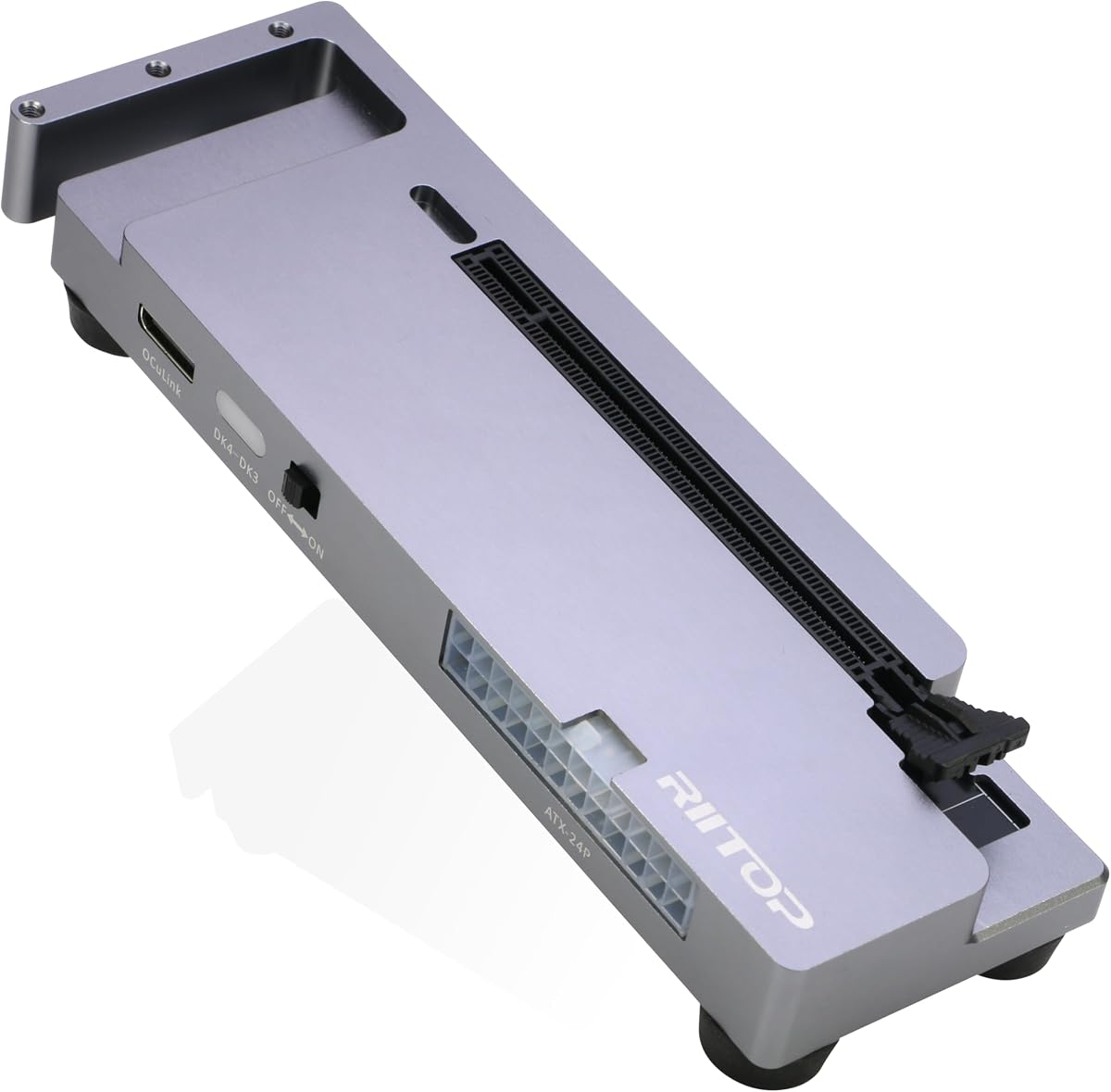
The RIITOP dock is a desktop-style OCuLink enclosure built around a PCIe 4.0 x16 graphics slot and a native SFF-8612 connection. It has a 5.0 supplied rating and stands out for broad operating-system claims, support for both ATX and SFX power supplies, and a clearly documented installation process.
We may earn a commission when you buy through this link, at no additional cost to you.
The open design places no stated restriction on graphics-card size, allowing builders to consider current NVIDIA RTX 50 Series and AMD RX 7000 Series cards as well as other compatible hardware. The package includes an OCuLink cable, two graphics-card fixing pillars, a power-supply bracket, a manual, and screws. Windows 10 and 11 64-bit, Linux, and Mac OS are listed as compatible systems.
The host must have a native OCuLink SFF-8612 port, and the graphics card and power supply are separate purchases. On Mac OS, compatibility is limited to AMD graphics; NVIDIA is not supported. OCuLink connections must be made with the system powered off, and the fixed-lock cable requires the release switch to be pressed before removal. These constraints prevent the dock from being universally plug-and-play.
This is the premium recommendation for a builder who wants broad platform flexibility, a conventional PCIe graphics slot, and a well-described mounting kit. It is particularly suitable for creators, engineers, and enthusiasts working across multiple operating systems. Check the host interface and operating-system combination before buying, but for compatible systems it offers one of the most complete packages in the guide.
A dedicated PCIe 4.0 x16 slot and unrestricted open frame give the enclosure enough room to accommodate a broad selection of modern graphics cards without a listed length limit.
Support for Windows, Linux, and compatible Mac configurations makes the dock useful across different workflows, although Mac users must choose an AMD card.
We may earn a commission when you buy through this link, at no additional cost to you.
This enclosure adds an MCIO-focused option to a list otherwise dominated by SFF-8611 and SFF-8612 designs. It can work with a native OCuLink port, an MCIO port, or a suitable internal M.2 NVMe or desktop PCIe slot through a separately sold adapter. The package includes a 50-centimeter OCuLink cable and the enclosure with screws.
We may earn a commission when you buy through this link, at no additional cost to you.
In standard configuration, the dock uses PCIe 4.0 x4 at up to 64Gbps. An MCIO-to-dual-OCuLink cable is required to unlock PCIe 4.0 x8 at up to 128Gbps, and that cable is not included. The frame uses glass-fiber-reinforced ASA, giving it a heat-resistant, reinforced structure. LED indicators, auto-start and forced modes, a structurally supported ATX bracket, and rear-routed power cables complete the feature set.
This model requires careful attention to the host interface. It is not compatible with USB-C, USB4, or Thunderbolt, and ordinary OCuLink use does not provide the optional MCIO bandwidth without the appropriate cable. The graphics card and ATX power supply are not included, no customer rating was supplied, and hot-plugging is not supported.
It is best for an advanced builder whose computer exposes MCIO or who wants to prepare for a future higher-bandwidth dual-OCuLink configuration. Users with a standard OCuLink port will still find the included cable functional, but they should not expect the optional x8 mode without purchasing and installing the correct cable.
MCIO support creates a path to PCIe 4.0 x8 when paired with the required dual-OCuLink cable, offering more bandwidth than the standard x4 configuration.
The glass-fiber-reinforced ASA frame provides structural rigidity, while rear-routed power cables and a conveniently placed power button keep the front of the enclosure cleaner.
We may earn a commission when you buy through this link, at no additional cost to you.
The ASUS TUF Gaming A2 is not an Oculink graphics enclosure. It is a rugged USB-C SSD enclosure included to clarify an important distinction: a product that houses storage drives and uses USB 3.2 Gen 2×2 cannot install a graphics card or connect through native OCuLink. It should not be mistaken for one of the PCIe docking products above.
We may earn a commission when you buy through this link, at no additional cost to you.
Its own capabilities are still notable. The enclosure supports two M.2 drives in 2242, 2260, or 2280 formats, with both NVMe PCIe and SATA SSD support. USB 3.2 Gen 2×2 provides transfer speeds up to 20Gbps. A Q-Latch mechanism enables screw-free SSD changes, while an aluminum chassis and thermal pad help dissipate heat and maintain drive performance.
The enclosure has a 4.5 rating and is built for durability. It is tested against U.S. MIL-STD-810H and IP68 standards and has a protective silicone-rubber exterior. It includes a one-year warranty. These qualities make it attractive for portable storage, but none of them change its lack of OCuLink or external graphics support.
This product is worth considering only if the reader's actual need is a rugged, high-speed external SSD system. For a laptop or mini PC that needs more graphics capability, choose one of the native OCuLink docks instead. The comparison illustrates why interface selection should come before enclosure aesthetics or storage-related features.
Two M.2 positions and support for both NVMe PCIe and SATA drives allow the enclosure to handle more than one drive and accommodate different drive types.
The rubberized exterior, IP68 rating, aluminum chassis, and thermal pad combine ruggedness with passive heat management for portable storage use.
We may earn a commission when you buy through this link, at no additional cost to you.
Choosing an Oculink enclosure requires balancing host-interface compatibility, bandwidth, power requirements, physical support, and intended workload. The most important first step is confirming that the computer can actually use OCuLink before comparing frame materials or cable lengths.
An OCuLink enclosure needs a compatible PCIe pathway. The host must provide a native SFF-8611 or SFF-8612 port, an appropriate MCIO connection, or an internal slot that can be reached through a suitable adapter. A USB-C port is not automatically an OCuLink port, even when the connector itself supports USB4 or Thunderbolt. Products in this guide explicitly exclude USB-C, USB4, and Thunderbolt as substitutes for native OCuLink. Buyers should check the exact connector in their computer rather than relying on a logo or marketing description.
Most of the graphics docks listed here use a PCIe x16 physical slot but deliver PCIe 4.0 x4 bandwidth, stated as 64Gbps. This is common because OCuLink implementations generally use four PCIe lanes, while the enclosure exposes a x16 slot for broad graphics-card compatibility. The MCIO-capable model can potentially use PCIe 4.0 x8, but only with the appropriate separately sold dual-OCuLink cable and a compatible host. Buyers should interpret lane width as the relevant performance limit rather than the shape of the slot.
The available cables range from 50 centimeters to one meter. A 50-centimeter lead is often easier to manage and may be preferable for a compact desktop, while 75 and 100-centimeter options provide more freedom when the enclosure must sit near a display and the host sits elsewhere. Longer cables are not automatically better; they need careful routing, should avoid tight bends, and should not create strain at either connector.
Most OCuLink graphics enclosures require a standard ATX power supply, and the graphics card is normally not included. Some models accept SFX units as well. The power supply should be appropriate for the graphics card and leave additional capacity for the system; the supplied guidance on several products recommends roughly 40% more power than the card's full-load consumption. Buyers should also account for the required PCIe power connectors, cable bending space, and the additional power draw of the host computer.
Open-frame designs generally accommodate different GPU lengths better than compact enclosed chassis, but length is only one dimension. A modern graphics card may also be wide, heavy, and fitted with power connectors on the top or side. Look for a graphics-card support pillar, a stable bracket for the power supply, and sufficient clearance around the card. A listing that says it supports any GPU size is helpful, but it does not remove the need to check the complete physical arrangement.
An open frame is straightforward to assemble and generally flexible, while a compact enclosure can look tidier and be easier to position. Reinforced materials may benefit setups that are moved frequently or contain heavy, full-size cards. Portability also depends on whether the cable detaches, whether the power supply can be removed, and whether the enclosure can be stored separately from the host. Consider whether the product will remain on a desk or travel between locations.
LED indicators make it easier to know whether the enclosure is receiving power, while auto-start and forced modes can simplify or troubleshoot operation. These features are not universal across the list, so they may help separate otherwise similar docks. They should complement, rather than replace, correct driver installation and a clean shutdown procedure.
OCuLink does not support hot-plugging. The computer should be powered off fully before the cable is connected or removed, and the graphics-card drivers should be installed as directed. Fixed-lock connectors may also require a release action before separation. These procedures are not optional conveniences; they reduce the risk of instability, detection failures, or damage to the host and enclosure.
Begin by confirming that the host has a native OCuLink SFF-8611 or SFF-8612 port, or that the required internal adapter and MCIO cable are available. Install the correct graphics-card driver before connecting the external dock for the first time. Assemble the enclosure with the graphics card and power supply supported according to the manual, connect the necessary PCIe power leads, and make sure cables can bend without being sharply folded.
With the computer fully shut down, attach the OCuLink cable to the host and enclosure. For a fixed-lock connector, locate and operate the release mechanism before removal. Do not unplug or rearrange the OCuLink connection while the system is running. After startup, use the enclosure LEDs and host device manager to confirm that the graphics card is detected, then install any software required for the intended workload.
Care for the setup by keeping the thin cable away from sharp edges, fans, and sources of heat or electromagnetic interference. Check the ATX bracket and graphics support regularly, especially after moving the enclosure. Route power leads at the rear where possible, avoid resting heavy cables on connectors, and clean dust from the graphics card, power supply, and enclosure openings. If the connection becomes unstable, shut everything down before inspecting the cable or changing any hardware.
Not directly unless the USB-C or Thunderbolt connection includes a compatible native OCuLink pathway, which is uncommon. The OCuLink docks in this guide explicitly do not work with ordinary USB-C, USB4, or Thunderbolt ports. Check the exact port specification of the host, or use a different external expansion standard that is explicitly supported by that computer.
Most of the listed graphics docks do not include a graphics card or power supply. The enclosure supplies the bridge from OCuLink to a PCIe slot, while the user selects the GPU and PSU. The exception in packaging terms is that the enclosure and cable are included, but the major performance and power components generally remain separate purchases.
No. OCuLink does not support hot-plugging, and the supplied instructions for these products require the computer to be powered off before connecting or disconnecting the cable. This also applies to systems that sleep or hibernate, so fully shut down the host and use the enclosure's controls as directed.
Common causes include missing or incorrect drivers, an incomplete power connection, a loose OCuLink cable, or a host that lacks native OCuLink support. Install the appropriate GPU driver before first use, verify that the ATX and PCIe power cables are firmly connected, and reconnect the OCuLink cable only while the system is off. Checking the host's device manager can help reveal whether the card is detected.
The x16 slot is the physical connector shape and allows the enclosure to accept a standard full-size graphics card. PCIe 4.0 x4 describes the active data path and is the relevant bandwidth limit for most OCuLink docks here. The card may physically use a x16 slot while the host-to-enclosure connection still operates over four lanes.
Capacity depends on the installed graphics card, the host system, and other connected hardware. The guidance supplied for several products recommends using an ATX supply with roughly 40% more capacity than the GPU's full-load consumption. The PSU should also provide the correct connectors and enough wattage for the complete system, not merely the graphics card.
A longer cable mainly provides placement flexibility rather than additional performance. Models with 75-centimeter and 100-centimeter leads can place the enclosure farther from the host, but they also require more careful routing. Use the shortest length that comfortably reaches your layout, avoid tight bends, and protect the connectors from strain.
No. The ASUS TUF Gaming A2 is a rugged dual-M.2 SSD enclosure that uses USB 3.2 Gen 2×2. It has neither an OCuLink interface nor a PCIe graphics slot. Choose one of the native OCuLink docks for external graphics expansion, and consider the ASUS model only for portable high-speed storage.
The best budget-oriented choice is the shielded PCIe 4.0 x4 dock with a 50-centimeter cable because it combines a 5.0 supplied rating, open-frame flexibility, and broad GPU support in a straightforward package. The feature-rich OCuLink eGPU Dock with detachable cable ends is the Editor's Choice, while the RIITOP enclosure takes the premium position with broad operating-system support, ATX and SFX power options, and a complete mounting kit.
The most important buying priority is compatibility, not appearance or cable length. Confirm that your computer has native OCuLink or a supported MCIO route, then choose a power supply and graphics card that fit the enclosure. Consider the physical bracket, card clearance, cable routing, operating system, and required driver procedure before purchasing. A longer cable only helps when the enclosure must be placed farther from the host.
Finally, recheck the current listing, package contents, specifications, and price before ordering. Oculink support, included accessories, and component availability can change, and the graphics card and power supply may add substantially to the complete system cost. A careful compatibility check will prevent most disappointing purchases and make the external graphics setup much smoother.